AI architectural rendering for design decisions that stay connected.
AI architectural rendering for architects and interior designers: turn exported views into presentation options, compare revisions, and export on Mac.
AI architectural rendering, explained
What is AI architectural rendering?
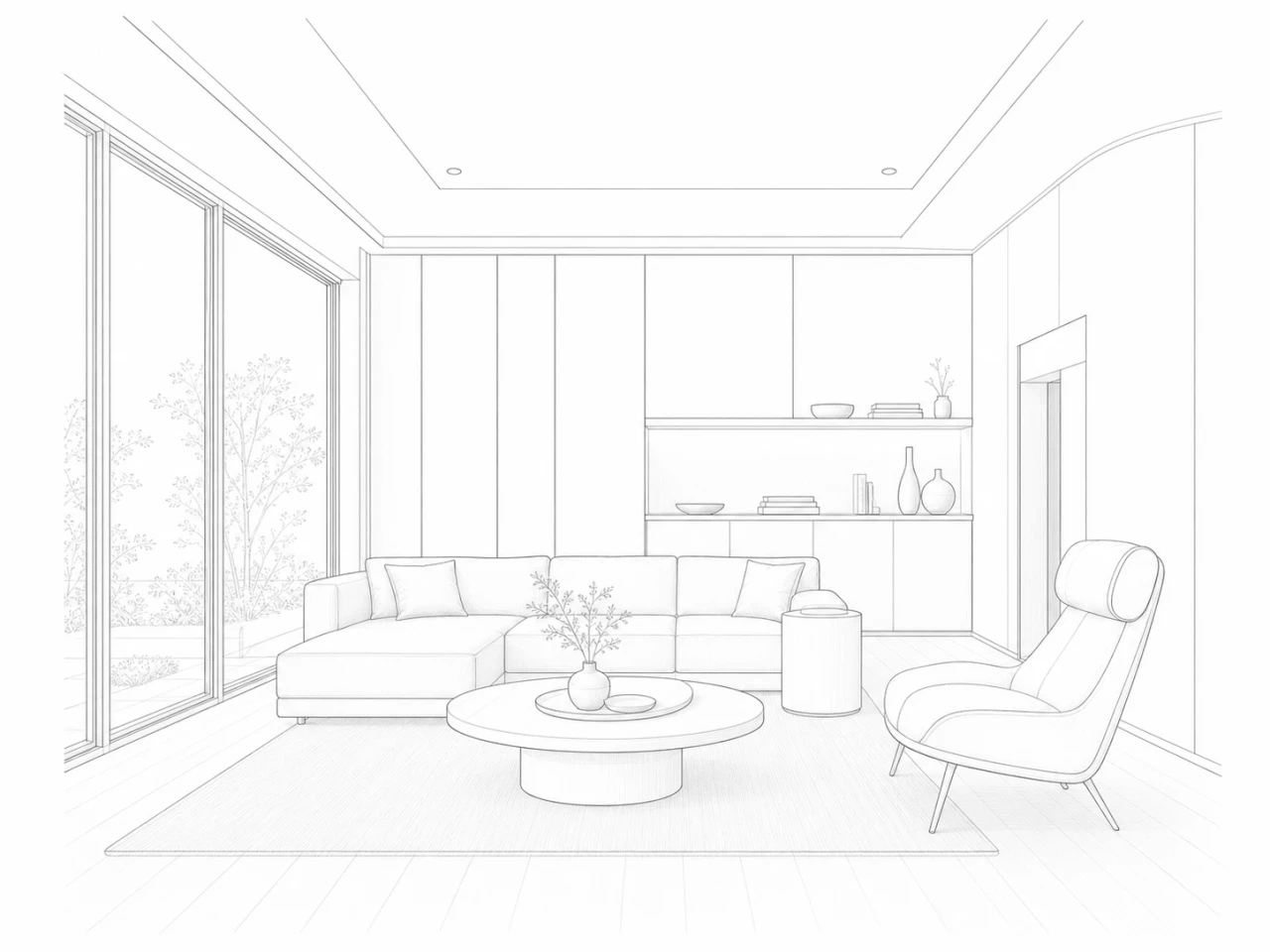
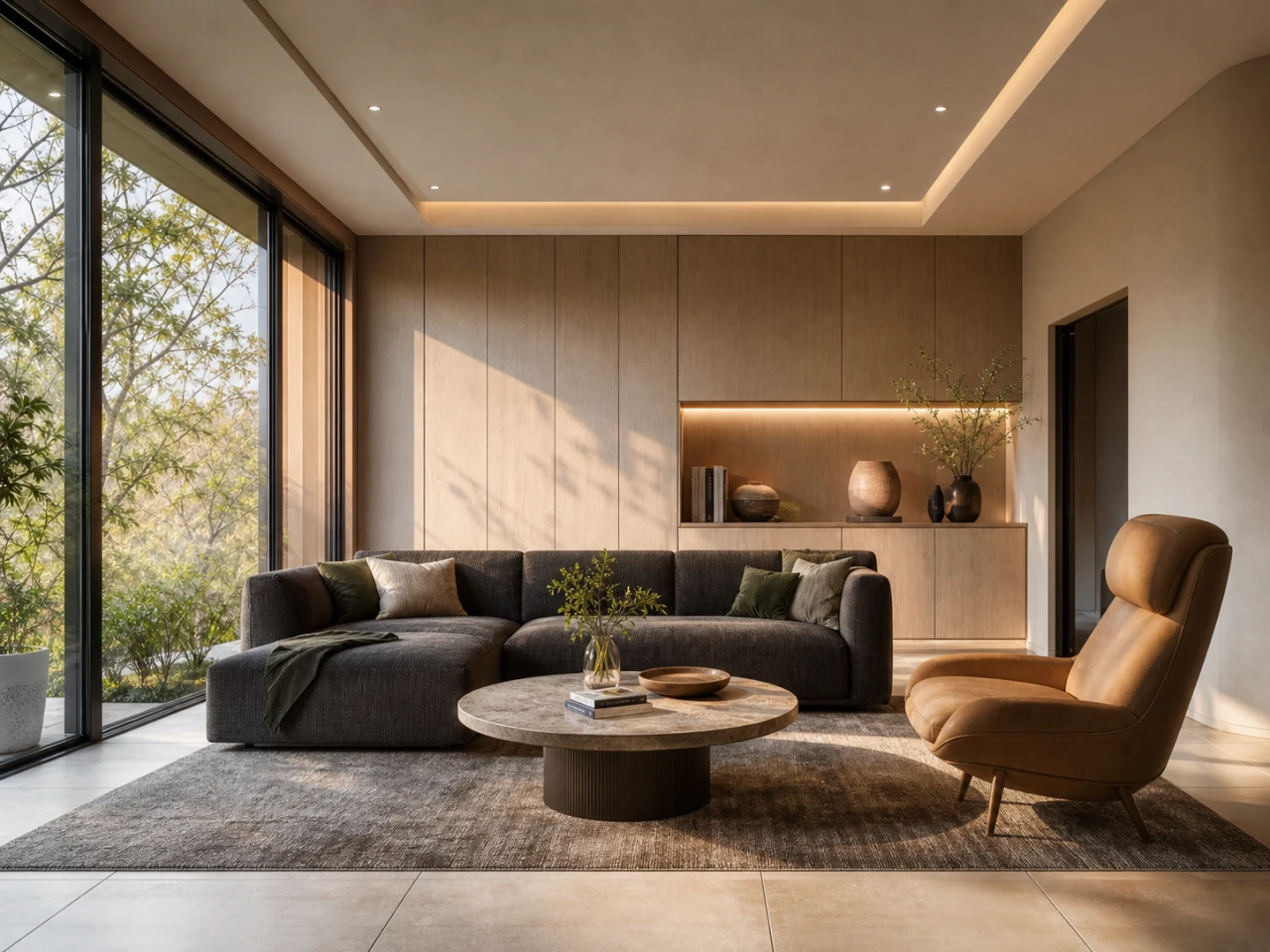
AI architectural rendering uses a source image, such as an exported model view, line drawing, or sketch, together with written visual direction to create presentation images. Instead of calculating a scene directly from editable model geometry, the rendering service interprets the pixels and instructions it receives.
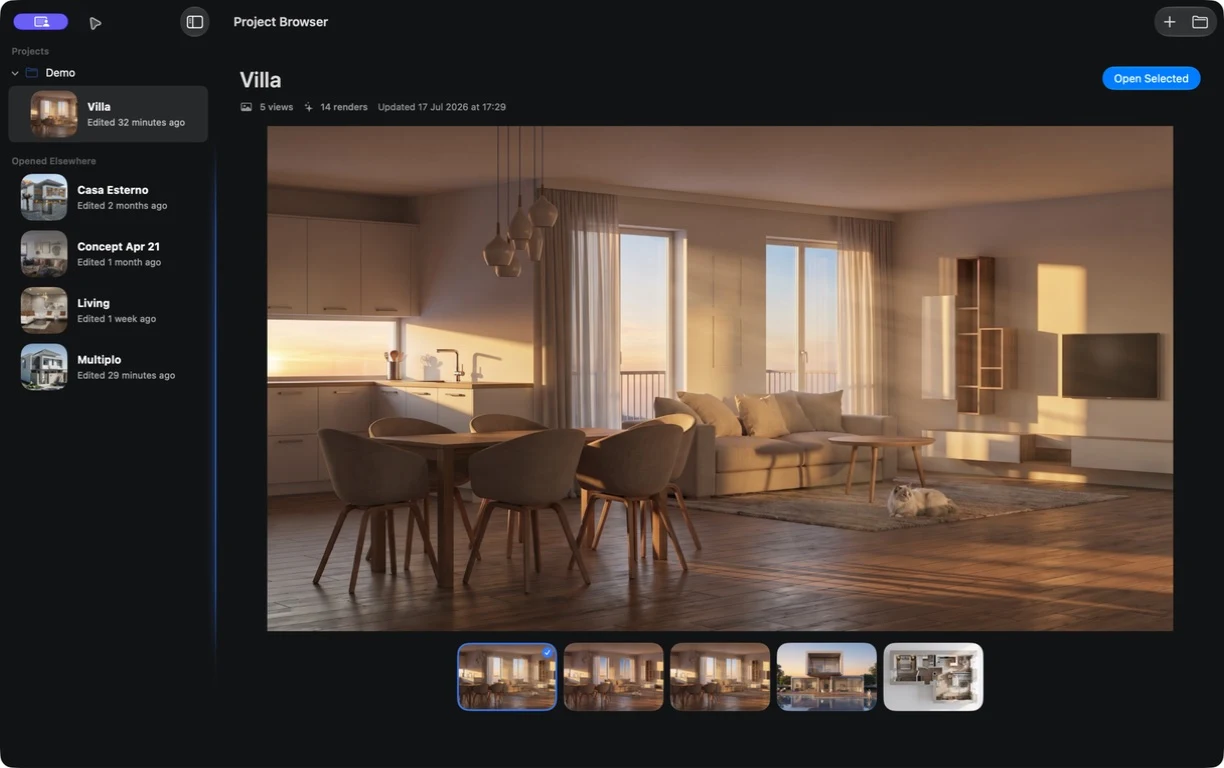
Velatura is the Mac project workspace around that process. Import a source view, create render options, keep the direction you chose, make a focused selected-region revision, compare the new branch with its parent, and export the result without scattering the round across unrelated files or browser tabs.
Start from design work
Use an exported architectural view, drawing, or sketch as the concrete visual starting point.
Explore presentation intent
Direct atmosphere, materials, lighting, and setting to make an idea easier to review.
Keep the decision trail
Preserve source views, alternatives, selected parents, focused edits, and exports in one local project.
Know the boundary
The result is an interpreted image, not a geometry-exact model, specification, daylight study, or construction document.
From first source to chosen direction, without losing the path.
Velatura keeps sources, versions, and selections inside one project, so the next comment begins from the work you chose.
A practical AI architectural rendering workflow.
01
Bring the exported view
Start from the design work already on the page, not from a blank prompt.
02
Find a direction worth keeping
Explore presentation options and select the one that best supports the conversation.
03
Revise from that choice
Create the next option from the selected version while its parent remains available.
Where AI rendering fits in an architectural workflow
AI visualization is useful when the goal is to explore and communicate a visual direction. It complements rather than replaces model-based rendering, documentation, and technical validation.
| Workflow question | Velatura approach | Boundary to plan for |
|---|---|---|
| Best use | Explore atmosphere, finish direction, lighting, and presentation alternatives from an existing view. | Do not use a generated image as proof of technical feasibility, dimensions, or specification compliance. |
| Source input | Import an image exported from your design tool, or begin with a drawing or sketch. | Velatura works from image sources; it does not open or modify editable 3D-model geometry. |
| Platform | Keep the render round in a native project workspace on your Mac. | Velatura requires macOS 15.0 or later on an Apple silicon Mac; Intel Macs are not supported. |
| Project storage | Your app-controlled project package remains the primary project copy in the location you choose. | Rendering is not fully offline: the selected inputs needed for a request are sent to the rendering path you use. |
| Rendering path | Connect OpenRouter on Starter, or use Velatura-managed rendering on Plus, Pro, or Ultra. | Provider availability, terms, model behavior, privacy practices, and result quality still apply. |
| Geometry and detail | The source image gives the service composition and visual context to interpret. | Generated output can move, add, remove, or reinterpret elements; exact geometry preservation is not guaranteed. |
| Focused revision | Select an area, describe the change, and keep the new option beside its parent in the project branch. | Local compositing protects pixels outside the effective mask, but this is not semantic object or model-geometry preservation. |
| Traditional rendering | Use AI rendering for fast visual exploration and presentation rounds. | Use a traditional model-based renderer when you need deterministic geometry, physically configured materials and lights, or technical verification. |
Questions architects ask
AI architectural rendering questions
Is Velatura an AI architectural rendering app?
Yes. Velatura is a native Mac workspace for turning imported architectural source images into AI-assisted presentation options, organizing revisions, and exporting the direction you choose.
Is AI architectural rendering the same as a traditional 3D renderer?
No. A traditional renderer calculates an image from model geometry, cameras, materials, and lights. Velatura sends image-based source context and visual direction to a generative rendering service, so the result is interpretive rather than deterministic.
Can Velatura import my 3D model?
Velatura's current workflow imports image exports rather than editable 3D-model files. Keep your authoring model as the source of truth, export the view you want to explore, and bring that image into a Velatura project.
Will an AI render preserve the exact architecture?
No exact geometry guarantee should be assumed. The source view guides composition, but generated details and even architectural elements can change. Review each image against the model before presentation or project use.
Where do Velatura projects and render inputs go?
The local Velatura project package remains your primary project copy. Starter sends render requests through your OpenRouter account and its selected model provider. Velatura-managed rendering temporarily processes the selected sources, instructions, references, and results needed to complete a request.
What Mac does Velatura require?
Velatura requires macOS 15.0 or later on Apple silicon. Intel-based Macs are not supported.
Can I use Velatura with SketchUp?
Yes, through an image-export workflow. Export the SketchUp view you want to explore, import that image into Velatura, and keep the SketchUp model authoritative for geometry and documentation.
Explore presentation directions quickly while the source model and project decisions remain under your control.
What to expect from generated results
AI-generated results can reinterpret geometry, materials, objects, and light. Treat every output as a presentation study, review the full image, and keep the source model and drawings authoritative.