AI rendering for SketchUp exports, organized on your Mac.
Export a SketchUp view as an image, import it into Velatura, explore AI presentation options, compare revisions, and export on an Apple silicon Mac.
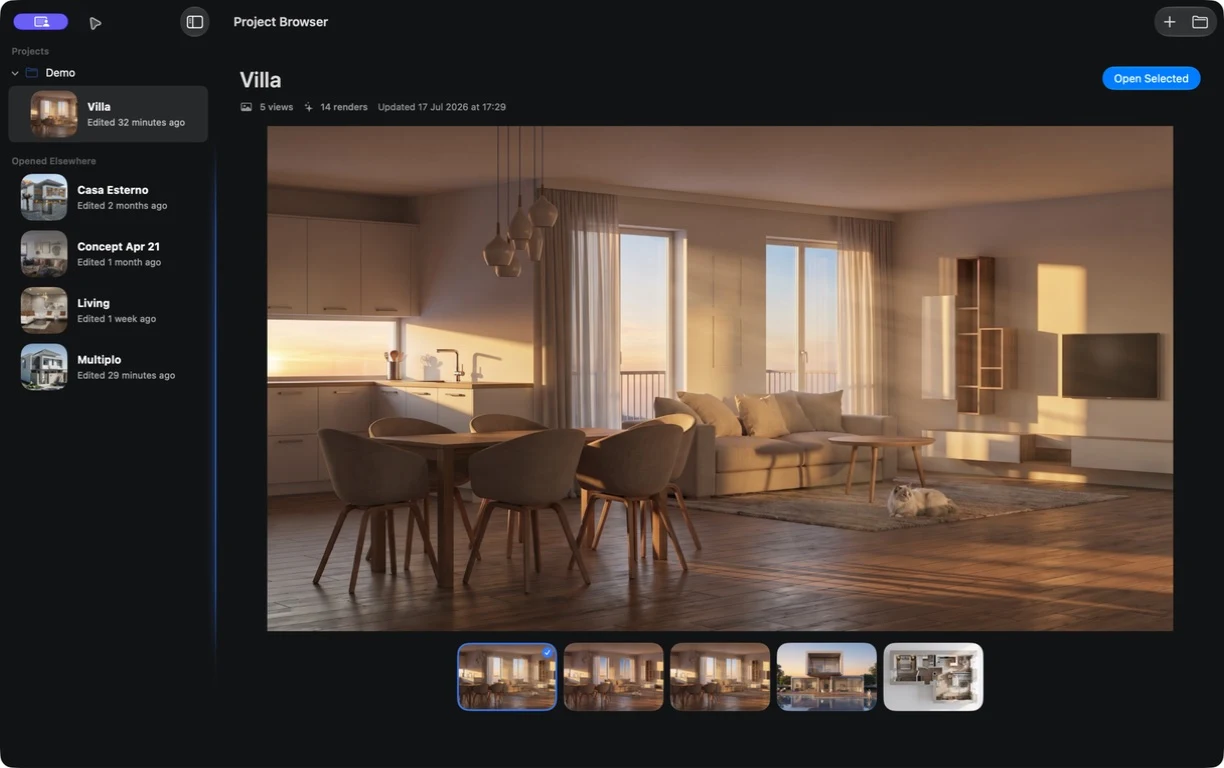
SketchUp workflow
How AI rendering for SketchUp works in Velatura
Velatura works after you choose a view in SketchUp. Export that view as an image, import the image into a Velatura project, and use it as the source for AI-assisted presentation options.
This is an image handoff, not a live model connection. Velatura does not install inside SketchUp, open .skp files, inspect model geometry, or send visual changes back to the model. Keep SketchUp as the authoritative design file and validate every generated option against it.
No plugin required
Move between the two apps through a normal image export and import.
One chosen camera view
The exported image gives the rendering service a concrete composition to interpret.
Organized visual iterations
Keep source views, render alternatives, selected-region edits, and exports in a local Velatura project.
Model stays authoritative
Return accepted design decisions to SketchUp yourself; Velatura outputs presentation images, not model changes.
Move from a SketchUp view to presentation options without losing the model handoff.
Export the view you want to explore as an image, then use that fixed source to direct and compare visual options in Velatura.
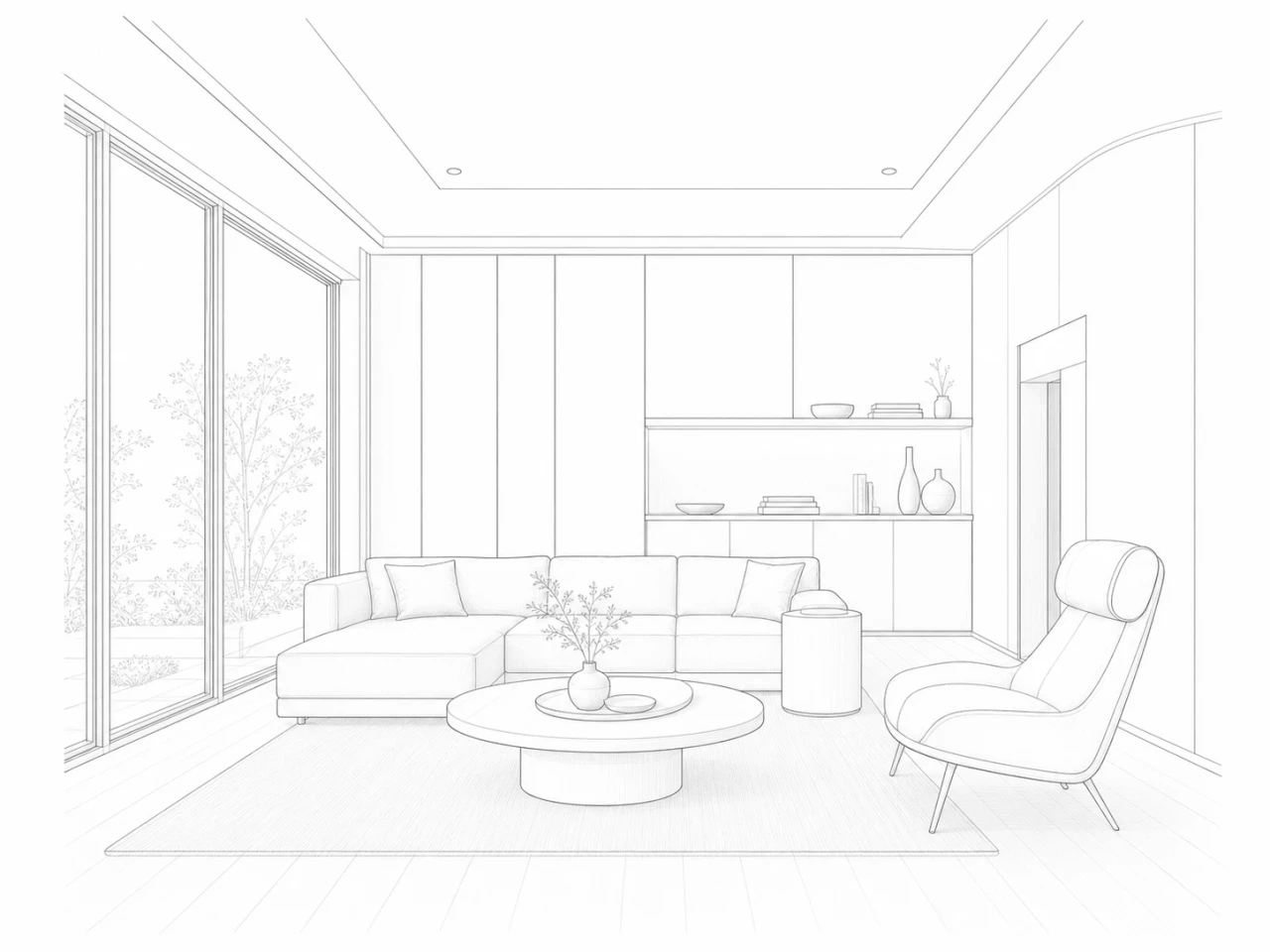
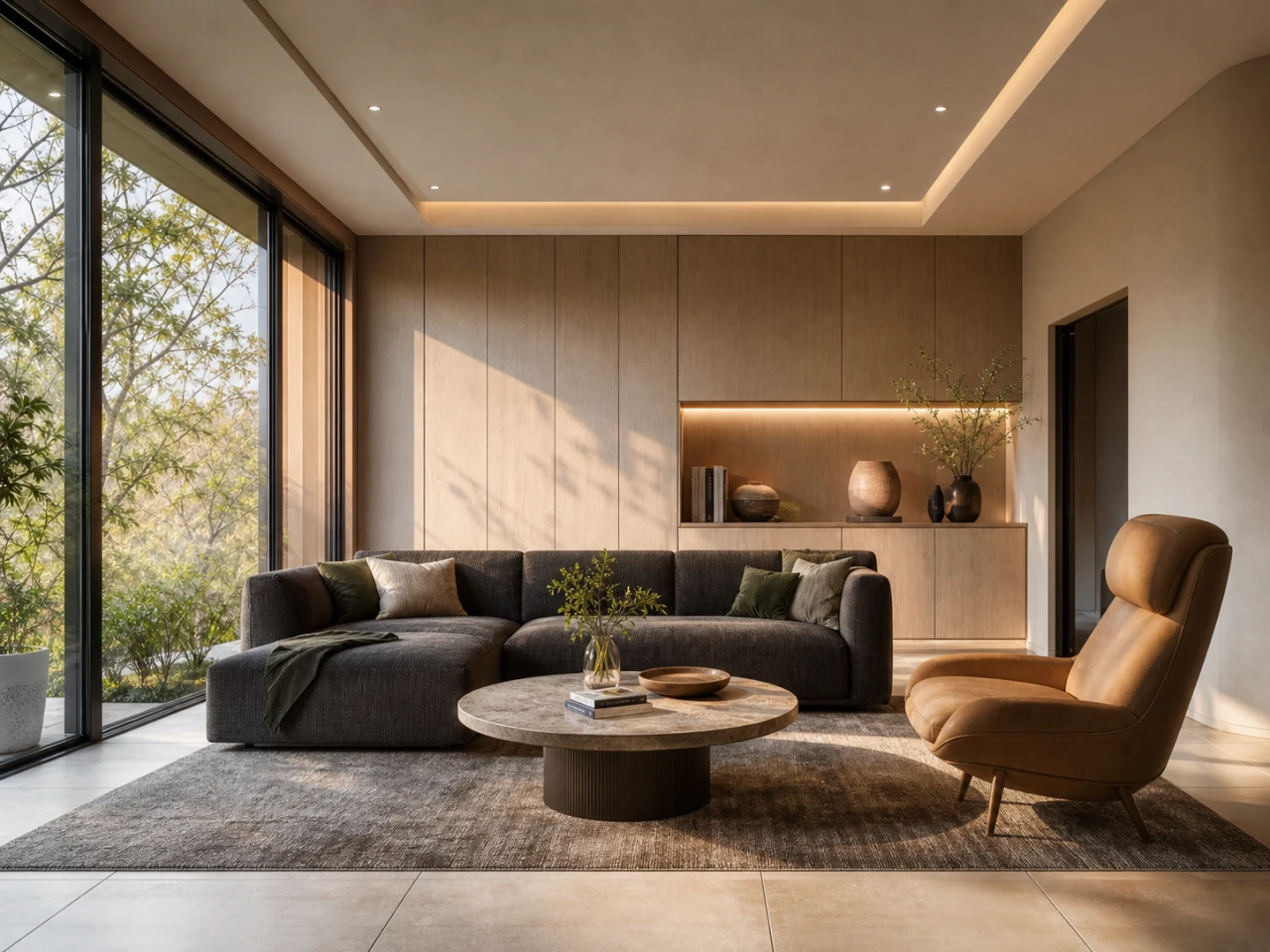
A clear SketchUp-to-AI-render handoff.
01
Choose and export the view
Frame the camera in SketchUp, then export the architectural view as an image.
02
Import the image into Velatura
Add the export to a local project and direct the atmosphere, materials, lighting, or setting you want to explore.
03
Compare, check, and export
Keep useful options beside their source, check them against the SketchUp model, and export the presentation image you choose.
SketchUp to AI rendering, step by step
Treat the workflow as a controlled image handoff. The clearer the exported view and the more focused the visual direction, the easier each option is to evaluate against the model.
| Stage | Recommended approach | Important boundary |
|---|---|---|
| Prepare the model | Set the camera and visible design information in SketchUp before export. | Velatura cannot inspect hidden model data, tags, components, scenes, dimensions, or material definitions. |
| Export the view | Export a clear image at the composition you want to present or explore. | The exported pixels are the source context; no editable .skp geometry travels with them. |
| Import to Velatura | Add the image to a project so the source and its later options stay connected. | Velatura does not open .skp files and is not a SketchUp extension or plugin. |
| Direct the render | Describe the intended atmosphere, materials, lighting, and setting for the presentation round. | The rendering service interprets the request and can change geometry, details, objects, and finishes. |
| Revise an area | Select a region, request a focused change, and compare the new branch with its parent. | Pixels outside the effective mask are protected by local compositing, but the edited area is generative and not geometry-aware. |
| Validate and export | Compare promising options with the source image and current SketchUp model before export. | A presentation image is not a substitute for the model, drawings, specifications, or technical rendering. |
Questions architects ask
SketchUp AI rendering questions
Is Velatura a SketchUp AI rendering plugin?
No. Velatura is a separate native Mac app. The workflow uses an image exported from SketchUp and imported into a Velatura project.
Can Velatura import a .skp file?
No. Velatura does not open .skp files or read their editable geometry. Export the view you want to explore as an image and import that image instead.
Does Velatura preserve exact SketchUp geometry?
No. The exported view guides composition, but the generative service can reinterpret architecture and details. Keep the SketchUp model authoritative and check every result against it.
Does an AI render update my SketchUp model?
No. Velatura creates and organizes presentation images; it does not write materials, objects, geometry, or camera changes back to SketchUp.
Can I make a focused change after rendering?
Yes. In Velatura Edit mode you can select a region, describe the change, and keep the new option beside its parent. The edited area remains generative and must be reviewed.
What Mac is required for the SketchUp export workflow?
Velatura requires macOS 15.0 or later on an Apple silicon Mac. Intel-based Macs are not supported.
Keep SketchUp authoritative for the model and use Velatura for organized image-based presentation rounds.
What to expect from generated results
Velatura is a separate Mac app, not a SketchUp plugin. It does not import .skp files or write changes back to the model, and AI-generated images do not guarantee exact geometry preservation.