AI render revision workspace for architects and interior designers
Keep the render your client approved. Create the next revision as a branch.
Start with a SketchUp export or architectural sketch. Preserve the version that works, revise one selected area, and compare every branch without losing the original.
Requires macOS 15.0+ on Apple silicon
7 days · 10 managed-render credits · No card required · Starts after email verification in the app
Working on a live client revision? Apply to the Founding 10 program
A 30-second revision
One review note. One new branch. Keep the parent available for comparison.- 01KeepApproved direction
- 02ReceiveOne client request
- 03SelectAn area for the next revision
- 04CompareNew branch with parent
Built by an interior architect for real client revision rounds
The first render is only the beginning.
Then feedback arrives: try a warmer material, soften the light, explore another mood. Velatura gives those decisions a place to develop without losing the version everyone liked.
01
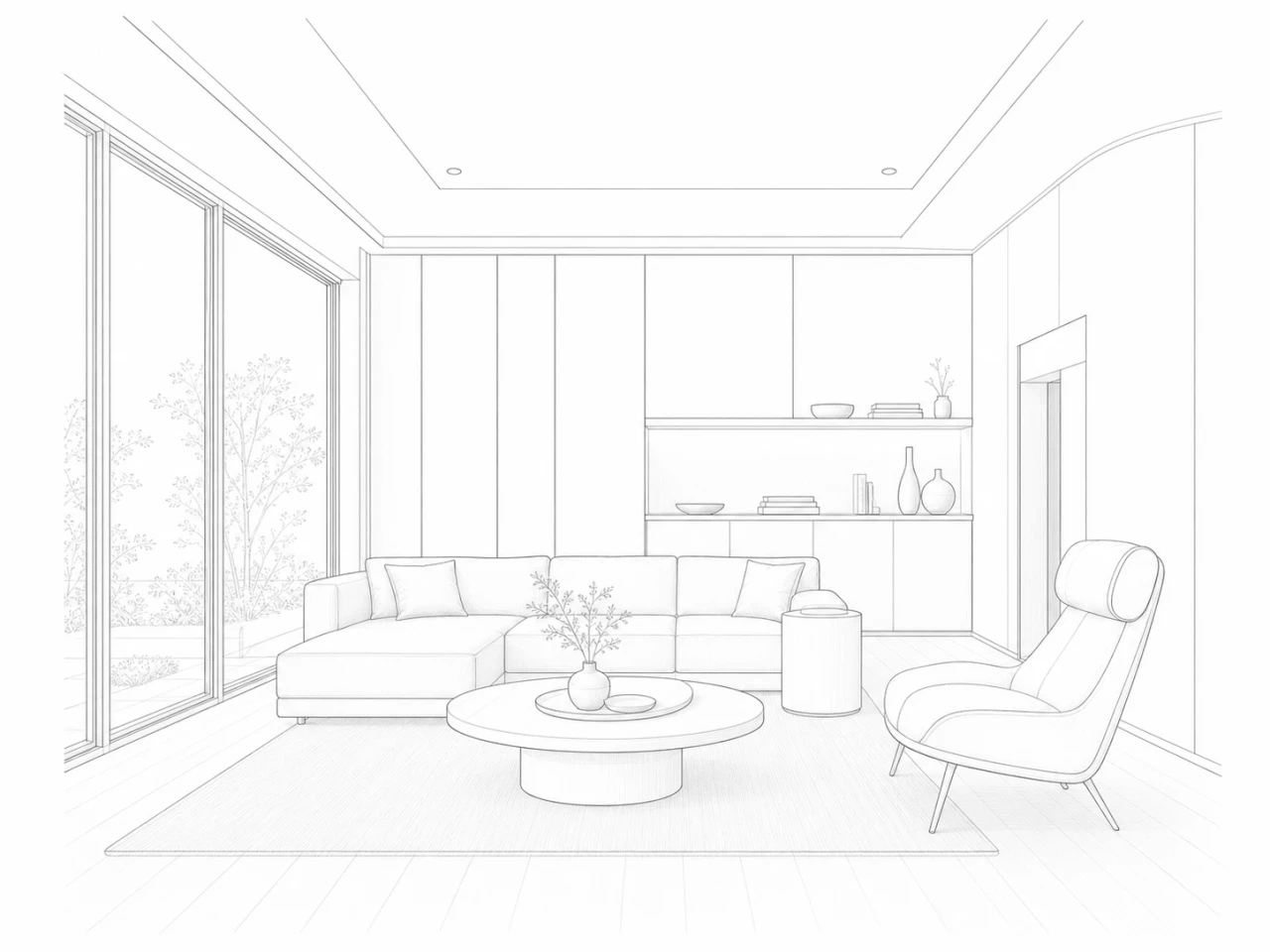
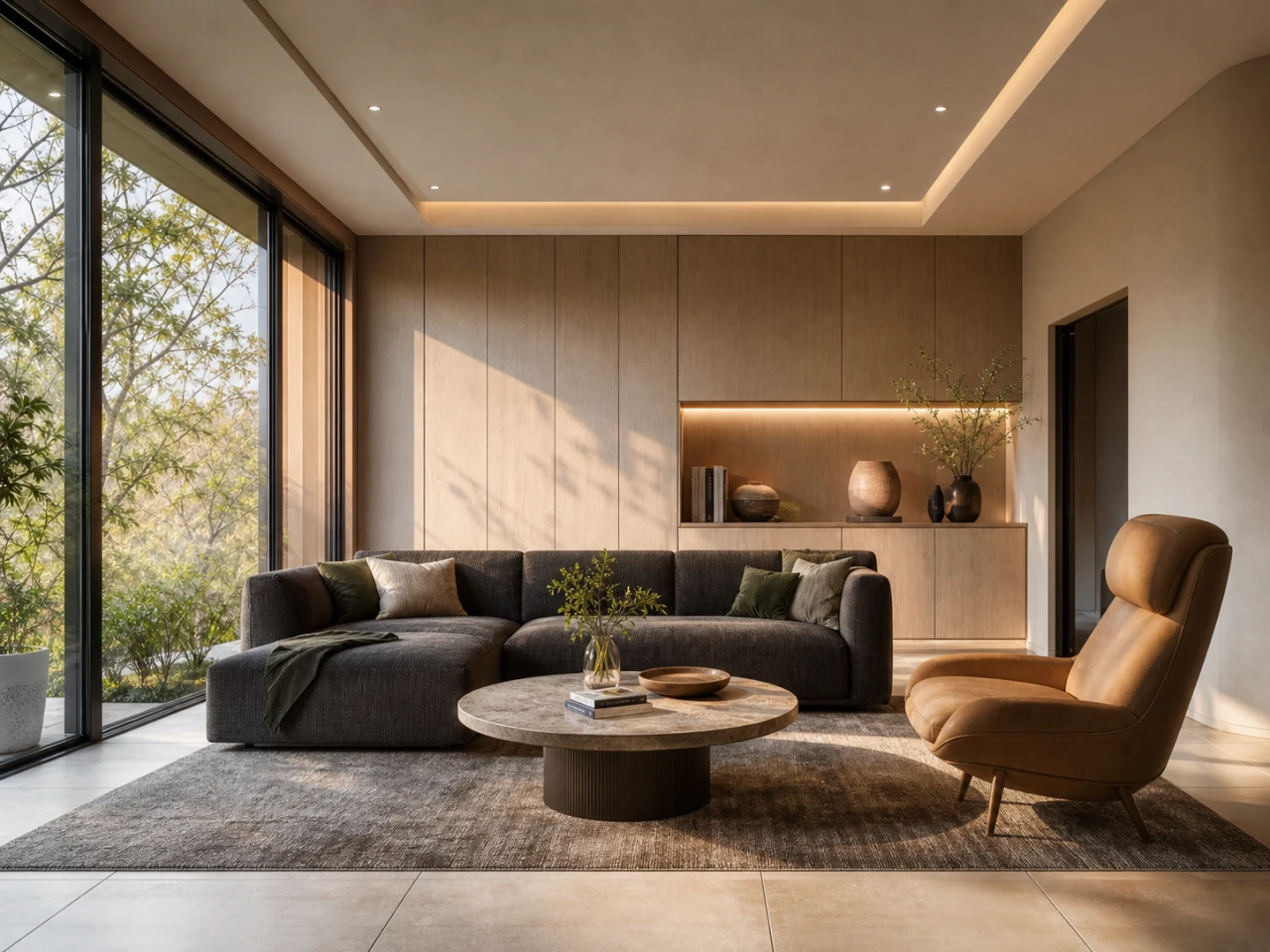
Start with the design view you already have.
Bring in a SketchUp export or clear architectural sketch. Use it to explore a presentation direction while the source stays attached to the project.
02
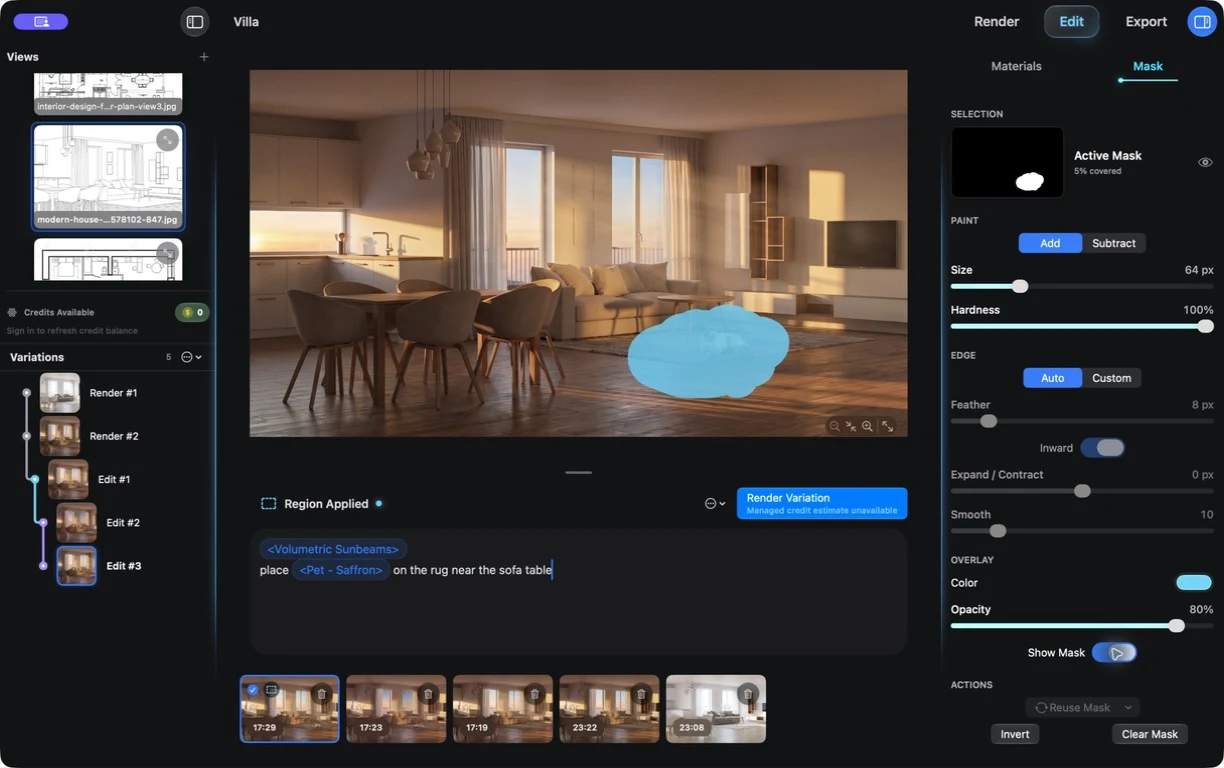
Keep the chosen version intact.
Make the next change as a new version beside it, then compare the revision with its original before choosing the stronger direction.
Explore selected-region editingWhat to expect from a focused revision
The selected area guides the next change, but generated content in and around it can vary. Review the full revision before using it.
03
Keep each option connected to the project.
See where a version came from, return to the option you want, and move the selected result into a focused export view. Less hunting through disconnected files; more confidence in the next choice.
Walk through the workflow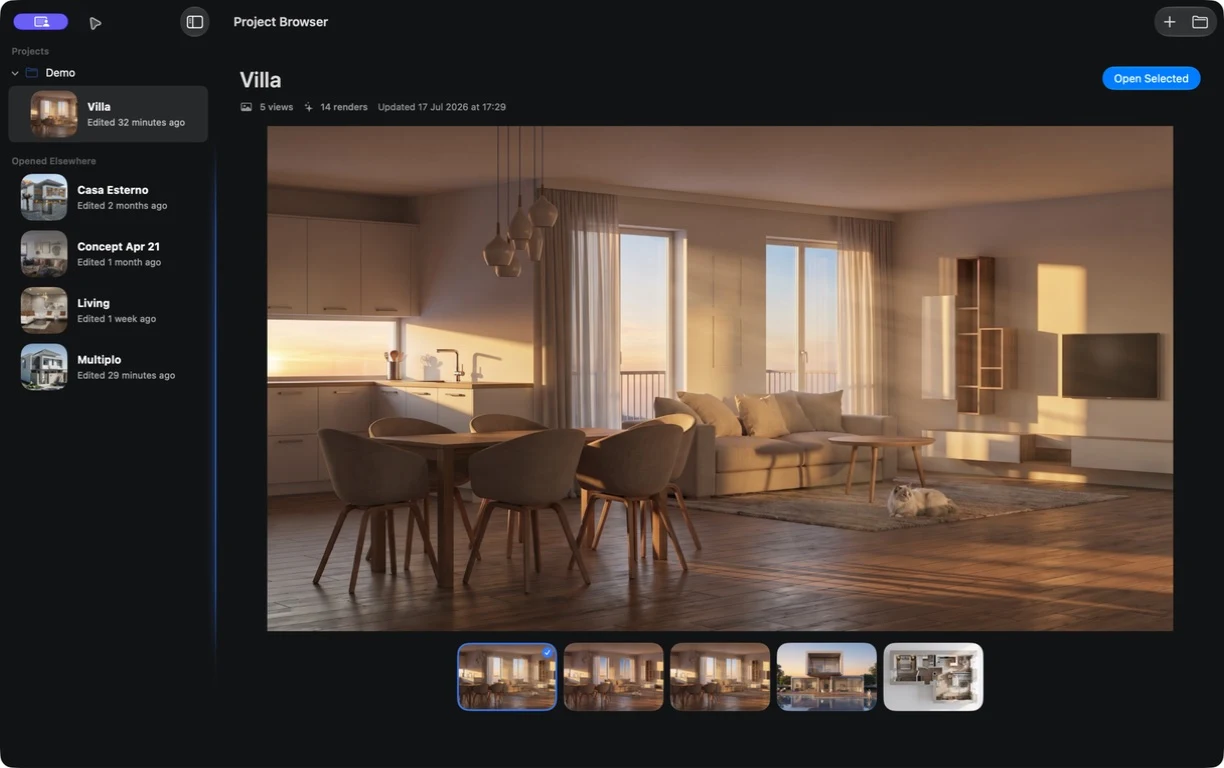
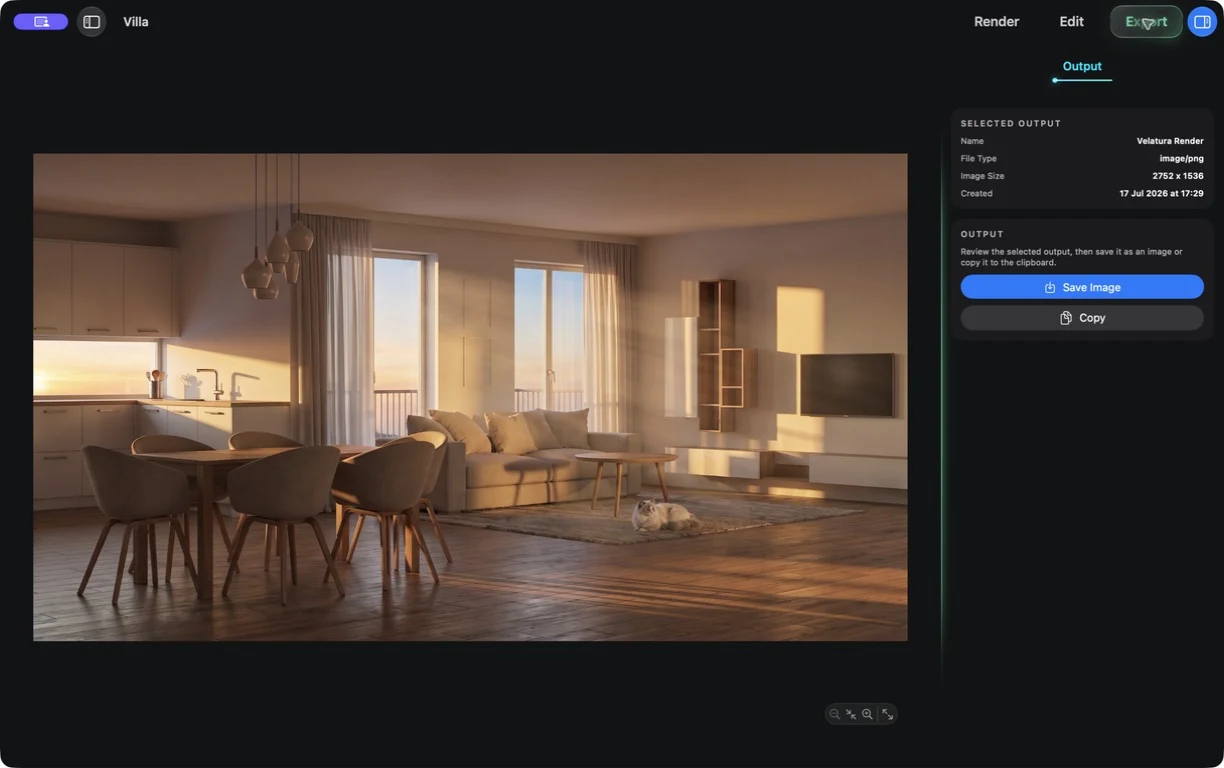
Built into Velatura
Four ways to begin. One project when feedback arrives.
Choose the direction that fits the brief. Velatura's advantage starts after the first image: keep the version you chose, branch the next change, and compare before moving on.
See how workflows can be reused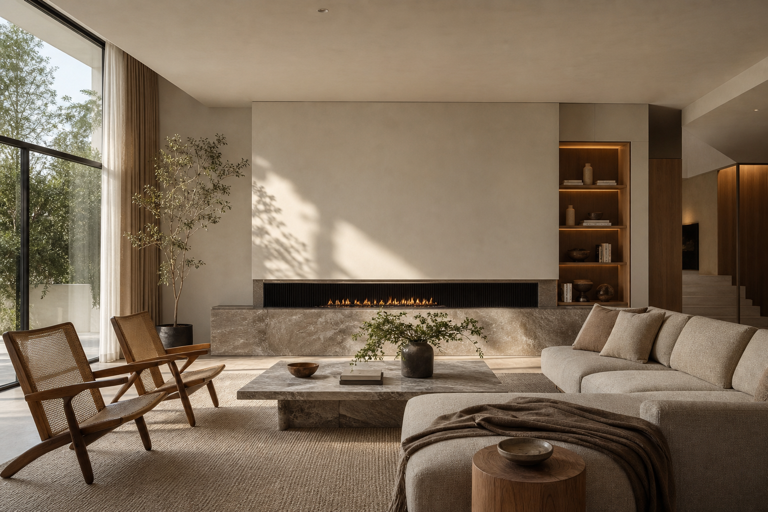
Interior
Interior Photorealistic
Turn an exported interior view into a polished photographic direction for materials, light, and atmosphere.
Example A living-room option for a client material review.
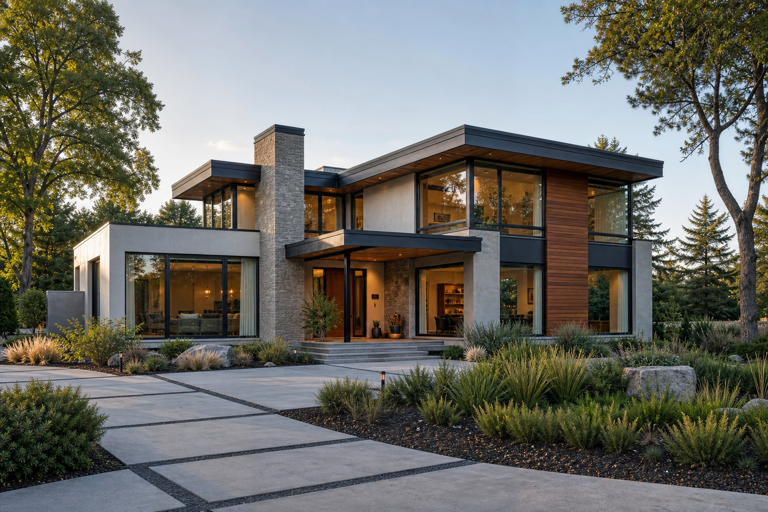
Exterior
Outdoor Photoreal House View
Turn a house view into a grounded exterior presentation with a considered landscape and daylight direction.
Example A facade option for a homeowner design meeting.
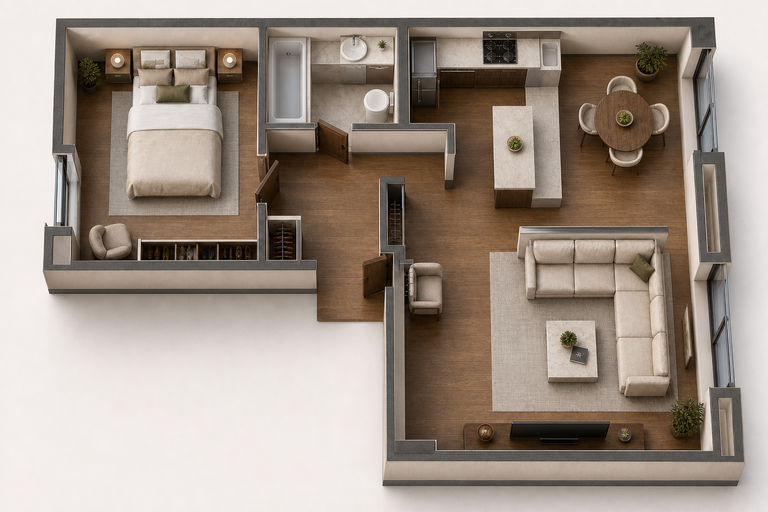
Spatial overview
Floorplan to 3D Visualization
Create a furnished bird's-eye visualization from a 2D plan so room relationships are easier to discuss.
Example Help a client discuss the relationship between kitchen, dining, and living spaces.
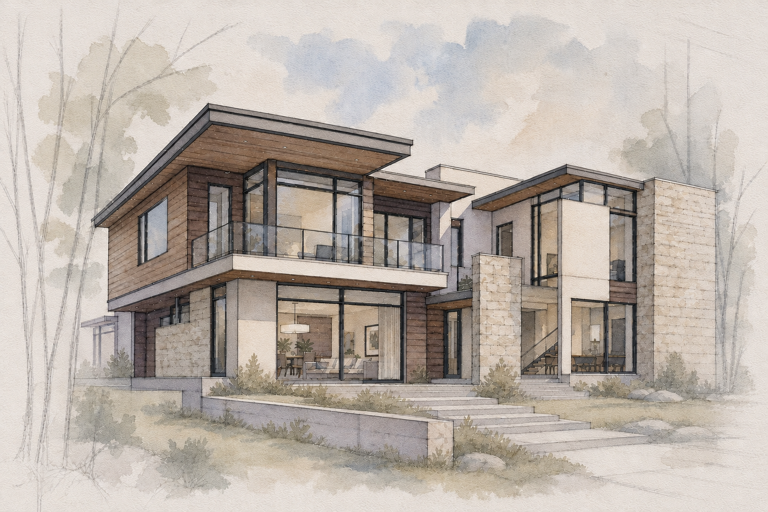
Illustration
Watercolor illustration
Turn an interior or exterior view into a restrained graphite-and-watercolor study.
Example A softer visual for an early concept review, before the design should feel final.
Actual workflows included with Velatura. Results vary by source and rendering service; review generated output. Floorplan visualizations are not measured models.
Simple choice
Full app. Two ways to render.
The Velatura workflow stays the same. Choose who handles the rendering.
Starter
Connect your OpenRouter account.
Velatura is €29/month. OpenRouter bills your rendering separately, so you stay in control of provider costs.
€29 / monthManaged rendering
Let Velatura handle the render path.
Choose a plan with rendering credits included and keep the workflow in one place.
From €99 / monthMade for Mac
Your project has a home on your Mac.
Your working project stays on the Mac and in the location you choose. If you use managed rendering, Velatura temporarily processes the selected inputs needed to produce the result.
Read the plain-language data guideKeep the good version. Make the next decision clear.
Bring your next architectural presentation round into one focused Mac workspace.